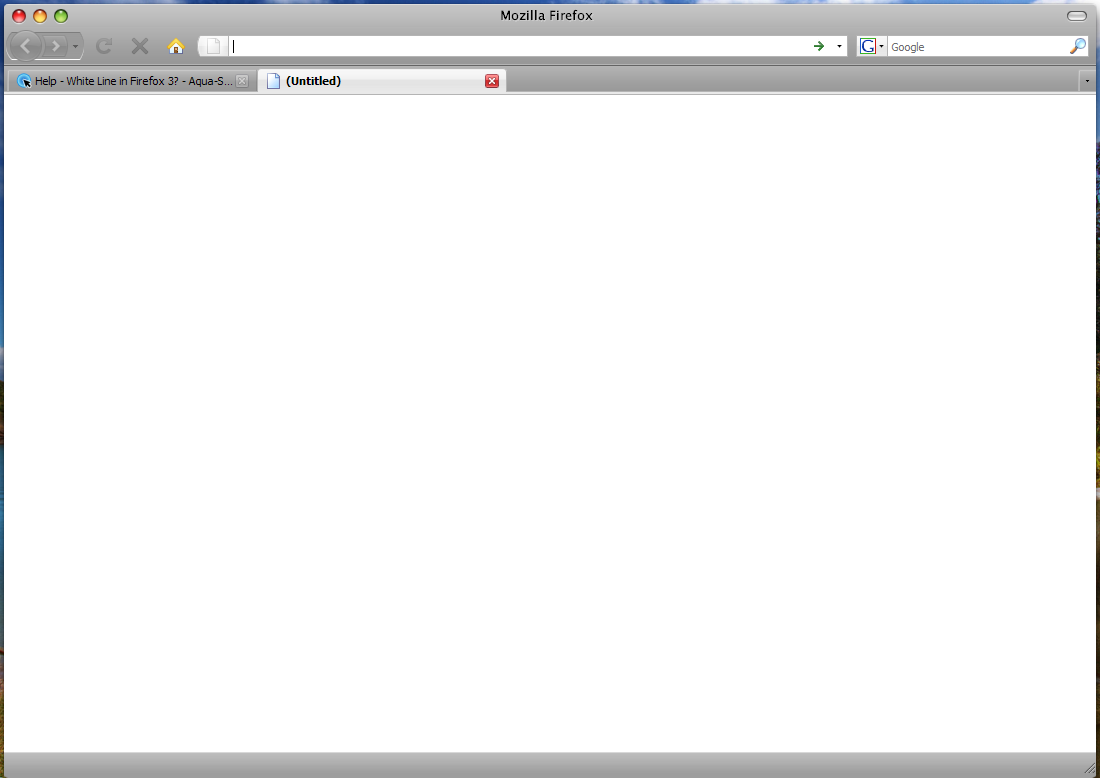
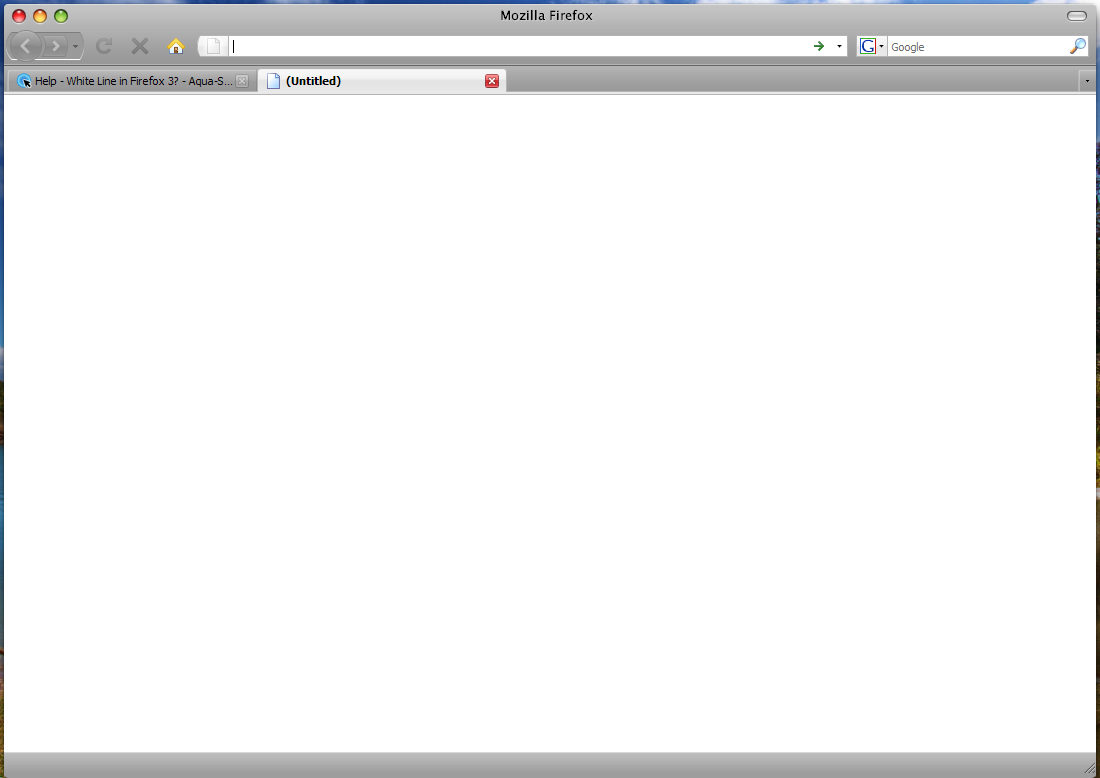
White Line in Firefox 3?
In Stylish:
/* Remove separators between toolbars*/
#toolbar-menubar {
min-height: 12px !important;
padding: 0px !important;
margin: 0px !important;
border: none !important;
}
#nav-bar {
border: none !important;
padding: 0px !important;
}
#PersonalToolbar {
border: none !important;
}
#navigator-toolbox {
border-bottom-width: 0px !important;
}
Thanks Kinsemon, but this code didn't work for Firefox 3 but you gave me the clue I needed. However using Google (I just answered my own question LOL) I found out that you need to edit userChrome.CSS and add a small code. There is no need for Stylish.
However I guess this is useful for other people who might want to know how. Here it goes:
1. Make sure Firefox 3 is not running.
2. Go to "C:Documents and SettingsUSERNAMEApplication DataMozillaFirefoxProfiles"
3. There should be 1 folder here. Click on it and then open "chrome" folder.
4. Open "userChrome-example". Delete everything inside it. Then copy and paste this code:
/* hide toolbar borders */
toolbar {
-moz-appearance: none !important;
}
5. Save as "userChrome.css" without the quotes.
6. Open up Firefox. No more toolbar separator.

Hmm... works for me, for both ff2 and ff3..., as the codes remove all these lines, whether you use/show menubar, nav bar, or bookmark bar..
also, I prefer using Stylish add-on., no messy edits, easy to restore etc.. Anyway, to each his own. mate. Cheers!
Aqua-Soft Forums