 Aqua-Soft Forums
I bought leopard, wiped my mac and started over. No iLife. Why???
iPhoto NOT bundled?
I think iLife is bundeled only with the sorta "OEM" (don't know how to call these) cds/dvds of Tiger.
Just put the install disk you got when buying your mac (insert disc 1), launch "Install Optional Components" and select what you want. (You will need disc 2)
If you lost the 1st CD, use Pacifist.
Good luck 
Yeah... I wiped my mac clean and installed leopard but I did back up all my applications on an external hd so I could get them back... or if you bought iLife '08 and you have the cds then just install the back on.
If you still have the disc that came with your mac, use that. You can still use the Tiger install disc to install iLife (I think), give it a shot. Make sure you only install the iLife part tho by configuring the setup options.
You will need to roll back your install back to the original Tiger OS X from the install disc supplied with your system.
This installation will load the system files back including iPhoto. You will then need to update Leopard using the update disc supplied by Apple.....
Follow the prompts and documentation carefully, because you CAN keep the peripheral Tiger apps with your update as opposed to doing a complete (clean) install.
If your Leopard is fully configured and you don't want to uninstall and reinstall Tiger, then you might prefer to purchase a new iLife disc and install from there...
Not an easy question to answer because there are no real short-cuts - as far as I am aware
Good luck
Noo you don't need to roll back !
The "Install Bundeled Software" icon is there for something.
Make sure you have teh 2 Tiger cd that looks like that : (may vary, I know that with an iMac, they are grey)
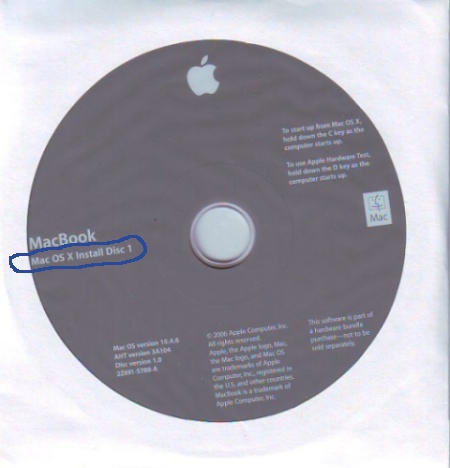
Put the CD 1 into the Mac
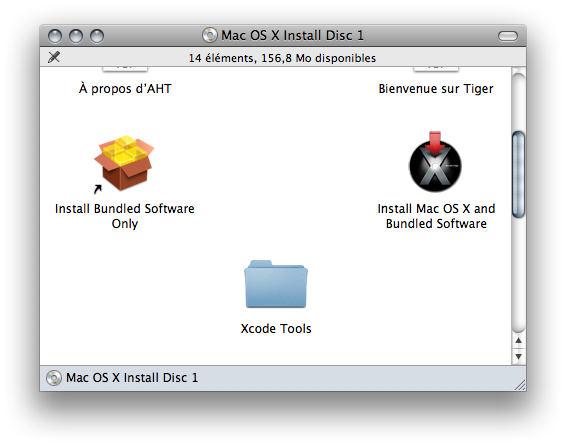
Open "Install Bundeled Software Only"
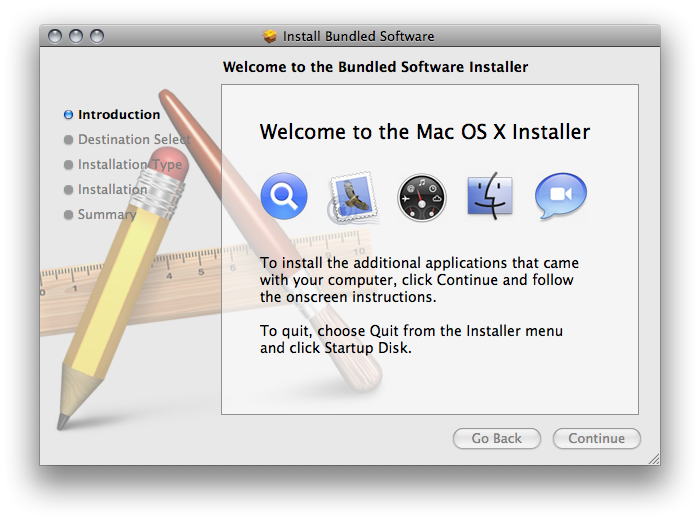
Click next, select where you want to install it ...
Now it should say that it's ready to install. Don't continue ! Click the "Customize" button instead.
The button you should click (Sorry, crappy Photoshop job xD)
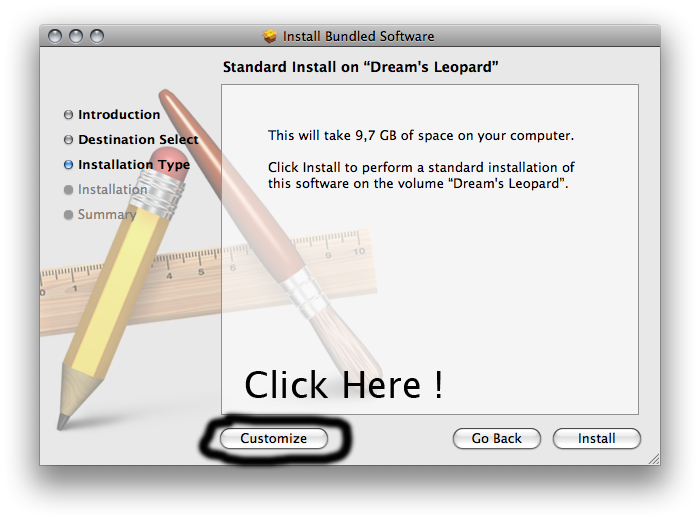
Now select the packages you want to install. (If it's not unchecked, you should not select iTunes unless you want an downgrade ^^)

Continue the installation, insert CD 2 when asked, and BOOM you have iLife on Leopard without downgrading ! 
Enjoy
PS : If you lost CD 1 and are an somewhat advanced user, use Pacifist on CD 2.