 Aqua-Soft Forums
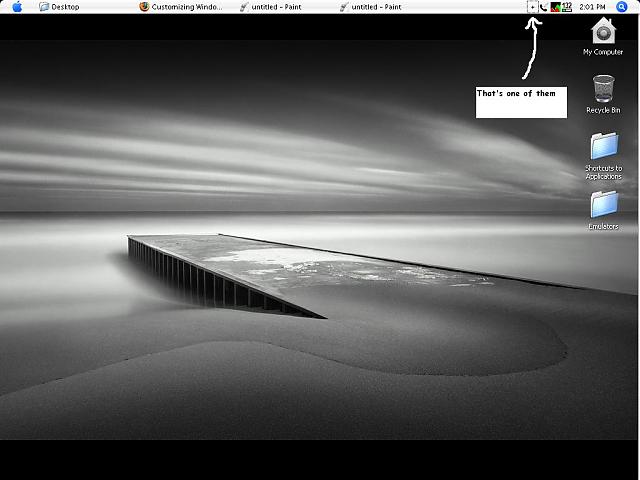
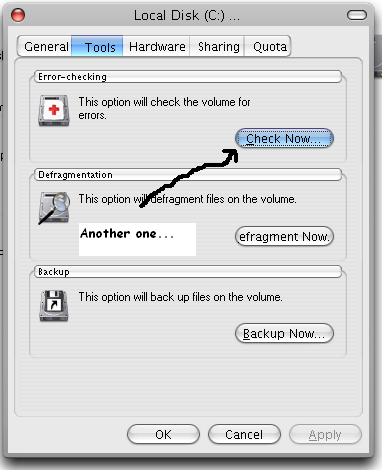
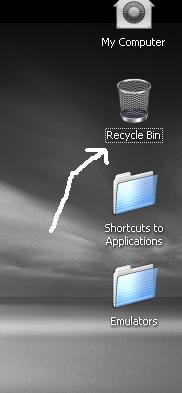
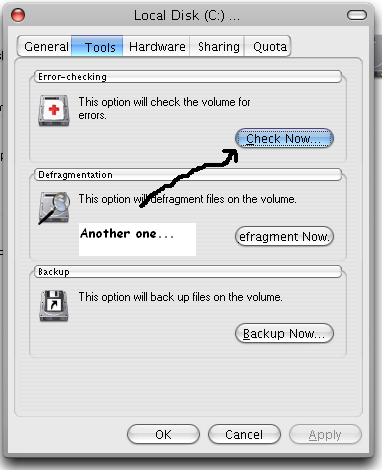
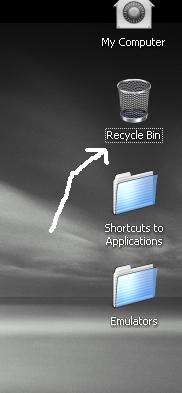
Hello. I'm mainly referring to the dotted-lines that appear around buttons when you click them (say, for example, the button in the taskbar that minimizes or maximizes the view of the system tray icons). I've searched the internet for some time but I can't find anything about this. I'm wondering if maybe this is a registry tweak since there doesn't seem to be an option for disabling this in any of the normal places (i.e. display properties, system properties etc.). I'd appreciate any help... Thanks a bunch.
How can I remove the dotted-line border around the buttons in Windows XP?
I believe you can't remove that border.
you could always experiment with flyakite
@GlassOnionCan you post a SS of what you're referring to?
Sure.
Buttons are not the only ones affected (see example 3).
By the way, the reason I'm asking is because I just used my cousin's laptop a few days back and it somehow didn't have those. It was using a Windows Vista visual style but I'm pretty sure visual styles can't eliminate them as I've used a fair amount of them myself. Anyway, if it somehow can't be removed, then that's alright. Thanks to all anyway : )
You can remove it by right-click to desktop -> select appearance tab -> Effects button -> select "Hide underlined letters for keyboard navigation Until I press the Alt key" then apply this settings of course
and voila here they are gone 
Yeh... ArchDevil is right !!!
I was irritated by those line when I was using brushed theme, untill I found out that ALT keys option can disable those pesky lines.
You can remove it by right-click to desktop -> select appearance tab -> Effects button -> select "Hide underlined letters for keyboard navigation Until I press the Alt key" then apply this settings of courseand voila here they are gone
Yes, that's it! I never thought that that's the option to disable it. Thanks a lot.
Yeh... ArchDevil is right !!!I was irritated by those line when I was using brushed theme, untill I found out that ALT keys option can disable those pesky lines.
Yeah... WinXP now looks and feels better for sure : )
Yeah... WinXP now looks and feels better for sure : )
but now I want to see you navigate a dialog using your keyboard 
@dreadnaut: It doesn't affect much navigating with keyboard.... obviously it doesn't show the hot-letter (ALT-key/underlined letter) menus or buttons... but then again it's just ALT-key press away !!
Unless you are using VS that doesn't have different effect for active buttons.. then yes, I'm afraid keyboard navigation will be bit hard.
I was more worried about Tab-navigation. Without focus border it's a bit difficult to know where you are but then again it's true, it may be the visual-style's fault
You can remove it by right-click to desktop -> select appearance tab -> Effects button -> select "Hide underlined letters for keyboard navigation Until I press the Alt key" then apply this settings of courseand voila here they are gone
brilliant. thank you.
You're welcome guys
lol u should get OBFont or LucidaMAC to change that ugly Lucida Grandes or wtv its called . it looks a lot better.