[help] Icon Changer Stuff

Hi!

I use iconphile, icon tweaker, icon packager and most new Bee Icons. All of them works nice. My favorite is iconphile.

Now the problem i belive is not new, but i can't find a straight answer so i need help.

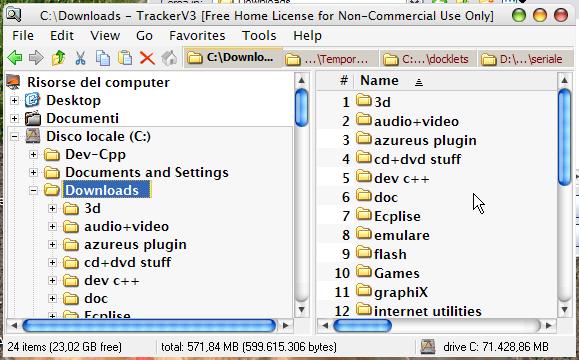
The problem is that icons aren't changed totally. I let pictures do the talking:
post-33757-1129816018_thumb.jpg

20.2005-secunda35.jpg

#324371

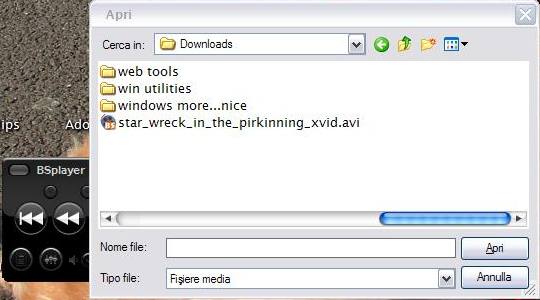
and this is the other:

post-33757-1129816340_thumb.jpg

20.2005-secunda50.jpg

#324373

You are right, this is nothing new and if you bothered to search you would have found the solution.

To change those icons you need to change the icons in registry.

#324377

i did bothered and searched but maybe...Whatever!

I am sorry and Thanks for help and please,could u guide me to that (those) thread(s)?

#324381

Quicker just to give basic instructions here. Download and open reshack, then open shell32.dll, located in (default) C:windowssystem32shell32.dll.

Go into the 'change icon' menu in reshack, and scroll down the list that opens. When you reach a folder icon, click on 'replace with' and navigate to the icon you'd like to use instead. Make sure that the icon that you use has the right sizes included for the one you're replacing (eg. here it would have to have a 16 x 16 size), then replace.

Repeat for each icon you want to change. The folder ones you've highlighted are in the first few entries. Then click 'save'. All done.

Reshack will automatically backup your old shell32.dll as shell32_original.dll, so if you have any problems, just restart in safe mode and rename this to just shell32.dll and your new shell32 to shell32.dll.bak or .old or something.

Alternatively, you can copy your current shell32 to a new location, edit the copy with reshack, and then use Replacer to switch the 2.

Now, use iconpackager, tweakui or one of the other million programs that offers this feature to rebuild icon cache, and, lo and behold, your icons will be transformed.

:)

#324392

I would be interested in hearing the registry hack that can change the icon though... Anyone?

#324393

Oh, well. There's no pleasing some people. The reason the registry altering version is, in my humble opinion, less advisable than the reshack option is that, if you ever change the location of the target icon, for example whilst changing your file structure, the icon will disappear and there will be other problems, as well as the fact that you have to deal with numbers rather than images, so you can't see what you're changing. But to each his own, so here goes:

Open RegEdit.

Go to HKEY_LOCAL_MACHINESoftwareMicrosoftWindowsCurrentVersionExplorerShell Icons

Add a string value for each Icon you wish to change.

eg:"3" ="C:WindowsIconsnewfoldericon.ico,0" will change the closed folders in Explorer to "newfoldericon.ico".

This is most likely the value you need to alter for the icons you've shown in your image, but from memory, and I'm not guaranteeing how accurate this is, 3 and 4 are the closed and open folder states (pretty sure of that) and 19-27 correspond to the different start menu entries.

So, have fun, but always back up before you make any changes, and you will need to reboot in order to see the results of your actions with regedit.

Good luck!

#324396

Oh, well. There's no pleasing some people. The reason the registry altering version is, in my humble opinion, less advisable than the reshack option is that, if you ever change the location of the target icon, for example whilst changing your file structure, the icon will disappear and there will be other problems, as well as the fact that you have to deal with numbers rather than images, so you can't see what you're changing. But to each his own, so here goes:

Open RegEdit.

Go to HKEY_LOCAL_MACHINESoftwareMicrosoftWindowsCurrentVersionExplorerShell Icons

Add a string value for each Icon you wish to change.

eg:"3" ="C:WindowsIconsnewfoldericon.ico,0" will change the closed folders in Explorer to "newfoldericon.ico".

This is most likely the value you need to alter for the icons you've shown in your image, but from memory, and I'm not guaranteeing how accurate this is, 3 and 4 are the closed and open folder states (pretty sure of that) and 19-27 correspond to the different start menu entries.

So, have fun, but always back up before you make any changes, and you will need to reboot in order to see the results of your actions with regedit.

Good luck!

Thank you, you have pleased me :)

#324410

Quicker just to give basic instructions here. Download and open reshack, then open shell32.dll, located in (default) C:windowssystem32shell32.dll.

Go into the 'change icon' menu in reshack, and scroll down the list that opens. When you reach a folder icon, click on 'replace with' and navigate to the icon you'd like to use instead. Make sure that the icon that you use has the right sizes included for the one you're replacing (eg. here it would have to have a 16 x 16 size), then replace.

Repeat for each icon you want to change. The folder ones you've highlighted are in the first few entries. Then click 'save'. All done.

Reshack will automatically backup your old shell32.dll as shell32_original.dll, so if you have any problems, just restart in safe mode and rename this to just shell32.dll and your new shell32 to shell32.dll.bak or .old or something.

Alternatively, you can copy your current shell32 to a new location, edit the copy with reshack, and then use Replacer to switch the 2.

Now, use iconpackager, tweakui or one of the other million programs that offers this feature to rebuild icon cache, and, lo and behold, your icons will be transformed.

:)

Thanks a lot! Works like charm! I knew about hacking shell32, but all the °tutorials° were to off road, but this one is just great! Tx, man!

#324523