 Aqua-Soft Forums
I would like to give more shadows around the frames, but just don't know how.
Could someone give me a hint plz?
I tried using gaussian blur that I found on some PS tutorial site, it didn't look good.
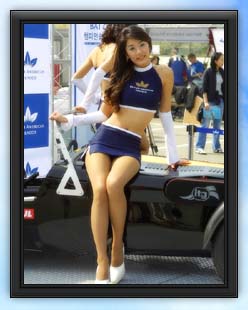
I would like to give more shadows around the frames, but just don't know how.
Could someone give me a hint plz?
I tried using gaussian blur that I found on some PS tutorial site, it didn't look good.
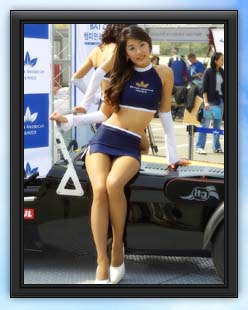
... doesn't look like there's any shadow at all around the frame.
To do a shadow, make a layer with a black rectangle the size of the thing for which you want to cast the shadow. Put that later under the main layer with the image of the girl, and gaussian blur the black rectangle layer to your liking. Then you can shift it, the shadow layer, for different shadow angles.
And to change the intensity of the shadow, lower the shadow layer's opacity to whatever you wish.
Or, if you're using Photoshop, you can use a drop shadow adjustment layer.
drop shadow layer style...
hot chick !
yeah.. layer style. >_
Drop shadow layer style + outer glow set to black for more control over details 
If you need a shadow all around - as opposed to a drop shadow - use Spread set to 10-40 % (works best) in your settings.
Drop shadow layer style + outer glow set to black for more control over details
Makes sure to not use Screen! Multiply or Normal is fine.
If you need a shadow all around - as opposed to a drop shadow - use Spread set to 10-40 % (works best) in your settings.
Not necessarily, you can have 0px as the distance, 90 degrees, and it'll be all around. But then again -- why not go with an outer glow?
^^ I agree. Outer glow is much nicer for an all round shadow than Drop Shadow with a distance of 0 px combined with a spread 
OK. I'm new in photoshop (i'm using 7.0 by the way). Could you guys plz be more specific? Step by step instruction would be nice. Thanks.
PS: What I meant was outer glow thingy rather than drop shadow.
@pwnprzpat: that's kinda obvious :confused:
@pax77or:
1. right-click layer you want to add shadow in the Layers pane (it is activated by pressing F7)
2. choose 'Blending options'
3. from the list on the left choos 'outer glow'
4. Click the colour, change it to black.
5. Blend - change it to Normal
And play with other settings. Make sure to check out Size and Range sliders, Opacity slider might be useful too.
Settings for almost 1:1 OS X shadow:
DROP SHADOW:
Color: black
Blend: normal
Opacity: 80%
Angle: 90 degrees
Distance: 8px
Spread: 0%
Size: 16px
OUTER GLOW:
Blend: normal
Opacity: 25%
Noise: 0%
Color: black
Technique: softer
Spread: 0%
Size: 1px
Range: 50%
Jitter: 0%