[help] Arch In Photoshop

OK, this is in PhotoShop 7. I have a layer that is not in vector form. I used text and then rasturized it (OK, it might not be the smart way of doing it, but I just want to get something done). Made my adjustments to the text and here is where I am. I want to make the layer look like it's an arch. You know, like a bow, or parabola. But I am not sure how to do this. I don't even know the name of the process to do this. I have search through the PhotoShop Help file, but can't find anything that can do it with a rasturized layer.

Sorry if this seems like a waste, but thank you to anyone who can help.

#204031

is'nt there some kind of envelope function like in freehand and illustrator?

#204037

Doesn't look like it. I haven't seen it in any of the menus and I also search the help files for it.

#204041

Hm, i think i've done it, just dont seem to remember how. maby i'm wrong...

#204047

I know only this method:

filter > distort > polar coordinates

This put your text around a circle, use flip (before

and after this filter) and transform to find the right shape!

I hope this help you!

;)

#204058

you could also try "free transform" and use perspectve, distort and skew

#204074

Well, I already knew about that Un, I had to (will didn't have to, but I chose to ) rasterize because I needed to mod the text, delete bits, add clefs by hand.

Essentially, I am working with a bitmap here.

@ Photo - Is there a certain technique where I can get it to bend? I can only get a "v" shape.

#204114

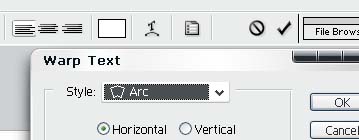
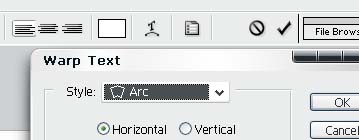
why not use the Text tool to use the Arc or somthing and warp the text?

its the button right beside the Text colour spot on the right side, the T with the arc under it

-bolero

post-37-1092878690_thumb.jpg

picture.jpg
picture.jpg

#204196

Bolero's way is the easiest, make certain to keep the text in it's natural vector format.

#204199

Yes, I know about the Text Effects as I have already stated two times. Sorry if I am sounding like an ass, but it's really frustrating. I had to rasterize it (take it out of Text form) because I needed to manually add clefs (curved tops), enlongate an "L" and other work. It is out of Text form and I need the text to have a certain look.

I will go back and do the text, then rasterize it and add the other things after, but I am not good at free hand when things are not in stright line, especially with a mouse.

I just want to know if there is a way to do this. Especially for future reference.

#204202

Originally posted by wizard@Aug 19 2004, 01:32 AM

Yes, I know about the Text Effects as I have already stated two times. Sorry if I am sounding like an ass, but it's really frustrating. I had to rasterize it (take it out of Text form) because I needed to manually add clefs (curved tops), enlongate an "L" and other work. It is out of Text form and I need the text to have a certain look.

I will go back and do the text, then rasterize it and add the other things after, but I am not good at free hand when things are not in stright line, especially with a mouse.

I just want to know if there is a way to do this. Especially for future reference.

<{POST_SNAPBACK}>

Well, you've got me confused here - why did you have to rasterize the text to make these changes? Text in PS7 is a vector shape for a reason - so you can use the pen tools and direct selection tools to modify the text. It's the cleanest, easiest way to mod text in PS7.. After typing your text go to Layer->Type->Create work path. Then select the Direct selection tool in your toolbar and click whichever points you want to change. If you wish to curve the text you can apply these text transformations, or you can even select individual letters or parts of letters and apply specific transformations.

http://www.twistedcpu.com/zombie/screenshots/AS/DST-text.jpg

vector text selected with the direct selection tool and a resize transoformation being applied while maintiaining the flexibilty of vector imagery

For clefs you might want to create a PS action with the direct selection tool that you could apply to each selected letter... but that might be a little more than you need.

This is the cleanest way of doing it... the 'right way' if you will.

Post Edited.

Don't post huge images inline.

Please limit inline images to 500px wide and 375px high.

---------------

Stevie BM

#204218

Hmm, I was messing around with seeing if certain things can show the vector handles to manipulate it yourself a while ago. It never occured to me that they would show up for text (nor did I try).

Thank you for that clarification DZ. That does look like the best way, especially with keeping it in vector form.

Sorry to anyone I missunderstood on that matter.

#204220

I hope I helped a little. I understand what you were asking about warping rasterized text, but that just looks SO BAD. Vector keeps it clean and simple. :)

DST-text.png

#204221